> For the complete documentation index, see [llms.txt](https://manual.egclinea.com/llms.txt). Markdown versions of documentation pages are available by appending `.md` to page URLs; this page is available as [Markdown](https://manual.egclinea.com/vaccination/opret_vaccination.md).
# Opret vaccination
Vaccinationer oprettes direkte fra vaccinationskortet.
### Funktioner
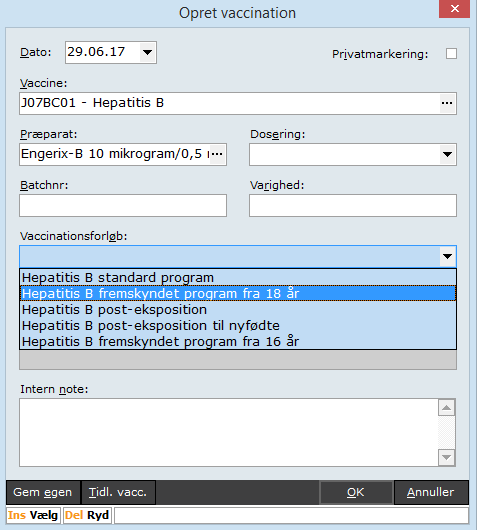
* Opret en vaccination med Ins, eller ved at skrive vaccine- eller præparatnavnet. Skriver du et præparatnavn, åbnes automatisk vinduerne *Opret vaccination* og *Vælg vaccine*. Udfyld *Opret vaccination* med detaljerne, og gem med **OK**.
* Opret en tidligere vaccination med Alt+Ins. Vinduet *Opret tidligere vaccination* åbnes automatisk. Udfyld det med detaljerne, og gem med **OK**.
[Trinvise eksempler på opret vaccination](/vaccination/opret_vaccination/trinvis-eksempler_opret-vaccination.md)
### Felter
* **Dato** – dato for indgivelse af vaccinen.
* **Vaccine** – vaccinens navn.
* **Privatmarkering** – sættes, hvis patienten ønsker vaccinen privatmarkeret på vaccinationskortet.
* **Præparat** – kan være forudfyldt ud fra den valgte vaccine. Ellers vælges præparatet manuelt.
* **Dosering** – vælges fra listen.
* **Batchnr.** – indtastes for vaccinen.
* **Varighed** – kan være forudfyldt ud fra det valgte præparat. Ellers angives varigheden manuelt.
* **Vaccinationsforløb** – vælges, hvis den valgte vaccine er del af et forløb.
* **Intern note** – fritekstfelt.
### Opret forløb ud fra vaccination
Er vaccinationen en del af et vaccinationsforløb, kan du oprette forløbet direkte herfra. Alternativt oprettes forløbet under *Planlagte vaccinationer*.
Nedenfor ses et eksempel på et vaccinationsforløb ud fra den valgte vaccination: vælg forløbet, og tryk **OK**. Det valgte forløb vises herefter.
{% hint style="info" %}
**Bemærk!** Den første vaccine har ikke flueben i kolonnen *Start med* — det er korrekt, da den gives med det samme. Markeringen kan flyttes, hvis patienten har startet forløbet i en anden klinik, så det kun er nødvendigt at oprette de resterende vacciner som forløb i denne klinik.
{% endhint %}
Den første vaccination oprettes/effektueres på vaccinationskortet, mens de resterende oprettes under *Planlagte vaccinationer*.
I vinduet *Ret vaccination* vises forløbsnavnet også, hvis vaccinationen indgår i et forløb.
## Skærmbilleder
 ---
# Agent Instructions
This documentation is published with GitBook. GitBook is the documentation platform designed so that both humans and AI agents can read, navigate, and reason over technical content effectively. Learn more at gitbook.com.
## Querying This Documentation
If you need additional information that is not directly available in this page, you can query the documentation by asking a question.
Perform an HTTP GET request on the following URL with the `ask` and `goal` query parameters:
```
GET https://manual.egclinea.com/vaccination/opret_vaccination.md?ask=&goal=
```
`ask` is the immediate question: it should be specific, self-contained, and written in natural language.
`goal` is what the user is ultimately trying to achieve, the reason they need the answer. Sharing it helps GitBook give you a better, more relevant answer. A goal is most helpful when it describes the outcome the user wants rather than restating the question. For example, with `ask=how do I create an API token`, a goal like `automate deployments from our CI pipeline` lets GitBook tailor the answer to that use case.
The response will contain a direct answer to the question and relevant excerpts and sources from the documentation.
Use this mechanism when the answer is not explicitly present in the current page, you need clarification or additional context, or you want to retrieve related documentation sections.